

Many times we have to make some drop-down list in Excel and that these are dependent on another list. Here I will show you how to create them in an easy and simple way.
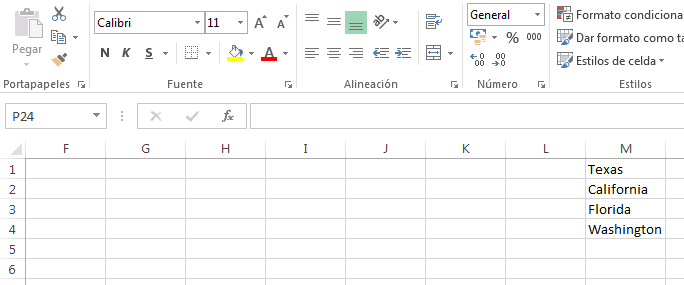
- We create a macro list on which the second drop-down list will depend. In our example, they are States of the United States.
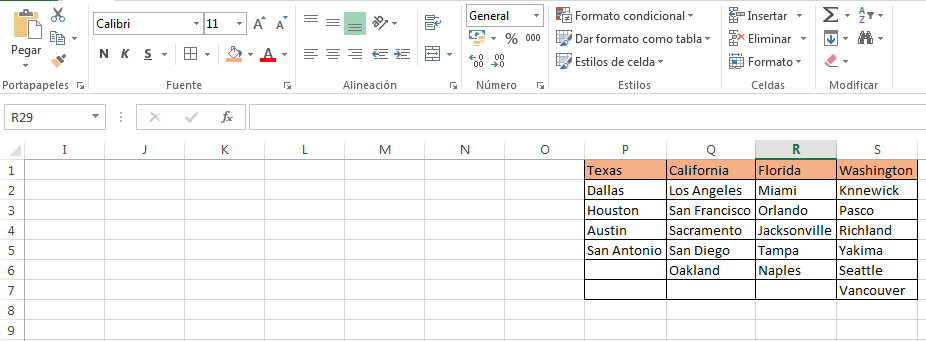
- Then we create the list that will be dependent on the first one. In our example it will be the cities of the states that we have selected.
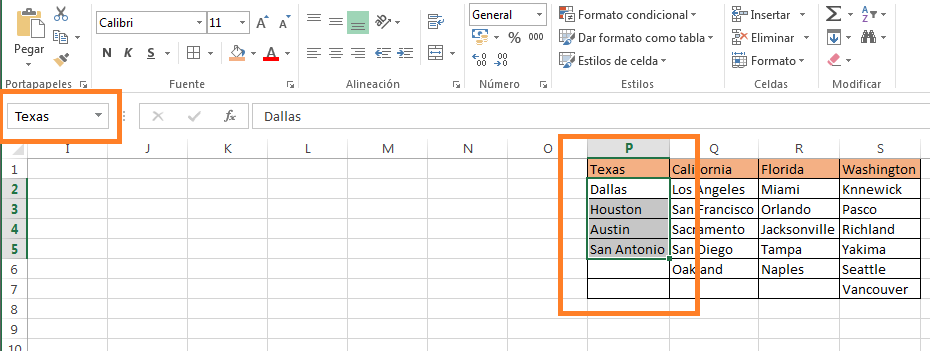
- We select the first range of cities, in our example the cities of Texas and we put a name in the name box that appears on the upper left side, where we usually see the cell number. It is important that the name does not contain spaces, accents or special characters, and that it is exactly the name that we have placed in the name of the state. Then we click on enter.
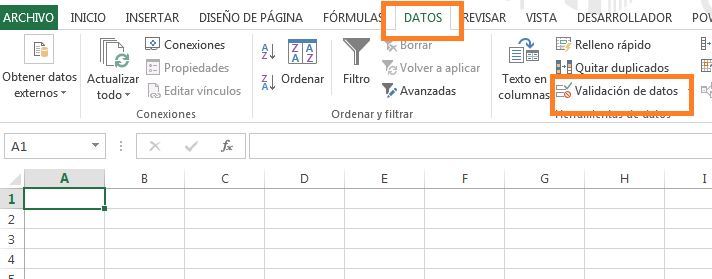
- Now let’s create the drop-down lists. We select where we want the first drop-down list to appear and go to the Data -> Data Validation menu.
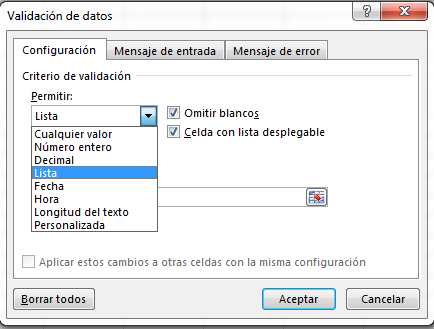
- In the window that appears, select Allow -> List.
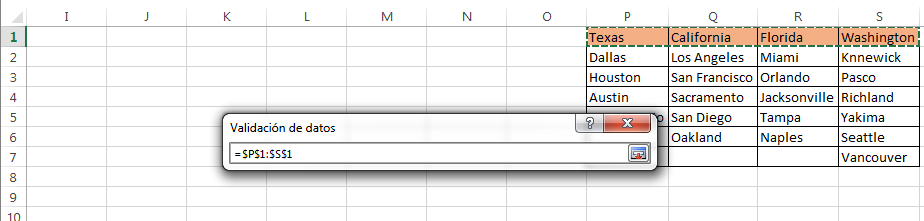
- In origin we select the cells where our macro list is, in our example the states.
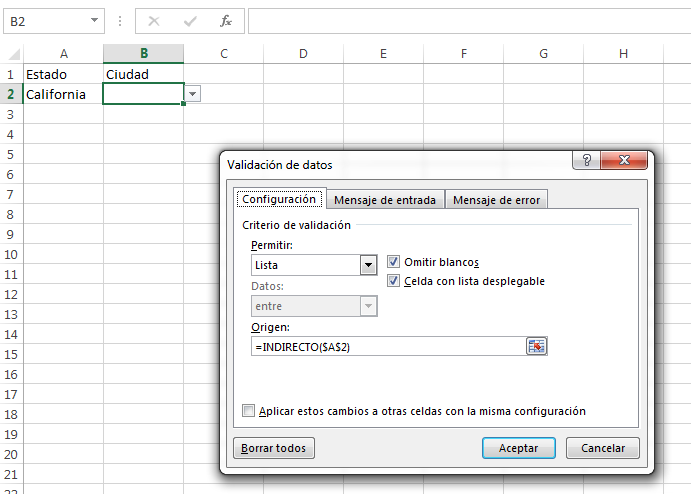
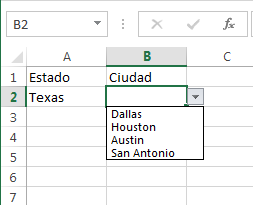
- With this we would have the first drop-down list. To create the drop-down list of cities dependent on the states, we again select the cell where we want the cities to be and go to the menu Data -> data validation, select in Allow -> List, and in origin we will place the function “= INDIRECT ( $ A $ 2) “. Inside the parenthesis we will place the cell where the dropdown of the macro list is, in the example in cell A2.
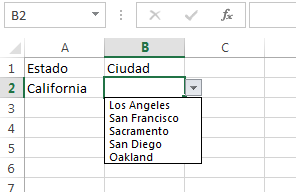
- Finally we have a list of the city depending on the state that we select.
If you have problems with your spreadsheets in excel I can help you, just send us an email with your questions or project. I’m to order.
 Excel for Everyone